Practical guide
Why a Muted Slack Conversation Still Shows Badges and Thread Replies
Distinguish mute from numbered badges, bold Threads, mention-only settings and other conversations, with documented desktop and mobile routes.
On this page
Separate a notification from a sidebar cue
A muted Slack conversation can still show a numbered badge or thread activity. Slack’s mute help explicitly retains numbered sidebar badges for mentions or received DMs, and says Threads becomes bold when someone replies to a message you sent in a muted conversation.
That distinction resolves a common false alarm: the continued cue does not by itself prove that the mute action failed. First identify what you saw—a banner, a sidebar number, or bold Threads—and which conversation it belongs to.
Documented controls: [1].
The diagram and cases are original explanations of documented behavior. They are not screenshots or results from testing a workspace.
Read the two branches of the control
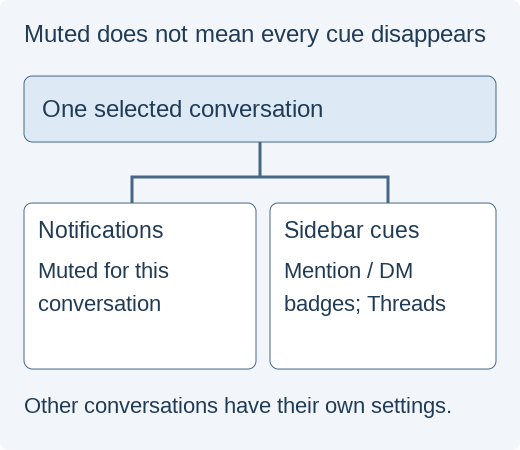
Download this original labelled diagram
On a narrow screen, scroll inside this table. Keyboard users can focus the region and use the arrow keys.
| Observation | What the mute help says | What to check |
|---|---|---|
| Number beside a muted channel | Mention badges can remain | Whether you were mentioned |
| Number beside a muted DM | Received-DM badges can remain | The particular DM |
| Bold Threads | Replies to your sent messages can remain visible | The original message and thread |
| Activity in another conversation | A muted DM does not mute the same people elsewhere | That other conversation’s setting |
Muted conversations are described as typically hidden from the sidebar. Sidebar preferences can show or hide them. Their visibility is therefore another separate setting, not proof of notification delivery.
Choose all posts, mentions or mute intentionally
For channels and group DMs with three or more people, Slack documents conversation-specific choices for All new posts or Just mentions. Muting is the choice for turning off that conversation’s notifications. Do not treat “just mentions” as a promise of complete silence.
On a narrow screen, scroll inside this table. Keyboard users can focus the region and use the arrow keys.
| Choice | Purpose | Boundary |
|---|---|---|
| All new posts | Be notified about new posts | Other notification conditions still matter |
| Just mentions | Focus on mentions | It remains a notification setting |
| Mute | Stop conversation notifications | Documented sidebar cues can remain |
Documented controls: [2].
Advanced conversation options separately cover desktop banners, mobile banners, different mobile choices, unread badges and following every thread. If a cue is surprising, inspect the relevant option rather than toggling every preference at once. The help does not establish the cause of a particular device’s screenshot.
Use the route for the conversation and device
- For a desktop channel, open it, click the Notifications icon and choose Mute and hide.
- For a mobile channel, tap its name and choose Mute channel.
- For a desktop one-person DM, clicking the Notifications icon mutes it automatically; a multi-person DM uses Mute and hide.
- For a mobile DM, tap the names, open Settings & Details and use the Mute toggle.
Documented controls: [1].
A desktop channel can also be muted temporarily for one hour or until tomorrow through Notifications → More options. That is a bounded channel action. If you intend a broader pause while away, use the notification-pause guide instead of muting many conversations without keeping a record.
Check the target and the remaining discussion
Imagine an invented #planning channel. You mute it, then someone mentions you in a post. A numbered sidebar badge fits the documented remaining cues. If they instead reply to a message you sent in a thread, bold Threads fits a different documented cue. Read the original message before deciding what response is required.
Thread notifications have their own rules. One-to-one DMs default to notifications for new thread replies. In channels and group DMs, starting a thread, replying or being mentioned can make you follow its replies. A thread’s menu can turn reply notifications on or off; keep that operation distinct from muting a conversation.
Documented controls: [3].
For a DM from an app or bot, Slack documents its own mute route via the app’s conversation. It explicitly says Slackbot cannot be muted. Do not convert that exception into a claim that every bot or all messages from an organization are controlled together.
Try three mute-scope checks
These situations are constructed examples of the documented distinctions.
Case 1
A muted channel shows a badge after someone mentions you. Does the badge alone prove mute failed?
Show answer and explanation for case 1
No.
The mute help explicitly retains numbered sidebar badges for mentions. Identify the cue and target before diagnosing notification delivery.
Case 2
You muted a DM with one colleague. Are messages from that colleague in every other conversation also muted?
Show answer and explanation for case 2
No.
Slack states that muting a DM does not affect the same people’s messages elsewhere. Those conversations have their own settings.
Case 3
A Slackbot conversation lacks the ordinary mute option. Should you assume a display preference will create it?
Show answer and explanation for case 3
No.
Slack’s mute help says Slackbot cannot be muted. A display preference is a separate control and does not supply a missing mute capability.
Sources and further reading
- Slack Help: Mute channels and direct messagesOfficial control descriptions for mute channels and direct messages. Consult current help and your actual workspace settings if controls differ.
- Slack Help: Manage notifications for specific channels and direct messagesOfficial control descriptions for manage notifications for specific channels and direct messages. Consult current help and your actual workspace settings if controls differ.
- Slack Help: Use threads to organize discussionsOfficial control descriptions for use threads to organize discussions. Consult current help and your actual workspace settings if controls differ.