Practical guide
Slack Edit, Unsend or Delete: Pick the Right Message Correction
Edit changes your sent text; desktop Unsend briefly returns it to the composer under specific conditions; Delete permanently removes it if permitted. None proves the original was unseen.
On this page
Choose the correction you actually need
Use Edit when the sent message should remain but its content needs correction. Use Unsend for a recent desktop message when all documented conditions apply: it removes the message from the channel and returns its content, including files, to the composer. Use Delete when you intend permanent deletion and have permission.
On a narrow screen, scroll inside this table. Keyboard users can focus the region and use the arrow keys.
| Control | Result | Key limit |
|---|---|---|
| Edit | Changes your own sent message | Workspace editing permission |
| Unsend | Returns sent content to your input for correction | Desktop, 15 seconds, same conversation, empty input and deletion permission |
| Delete | Permanently deletes the message | Deletion permission; confirm carefully |
These descriptions concern your own sent messages. They do not promise that nobody already read, copied or captured the original. A visible correction and a conversation about a consequential mistake may still be needed.
Documented controls: [1].
Edit your own sent message
- On desktop, hover your message, choose its three-dot menu and select Edit message. Make the correction and choose Save Changes.
- On mobile, press and hold your message, choose Edit Message, change it and confirm with the checkmark. Slack also documents double-tapping a message to edit on Android.
- If the edit control is unavailable, check that this is your own sent message and ask an owner or admin about the permission.
Editing is allowed for members by default, but owners and admins can restrict it. Do not claim that every account can always edit or that a missing menu proves a temporary app fault. The documented next step for a permission problem is an owner or admin.
Documented controls: [1].
Check every Unsend condition
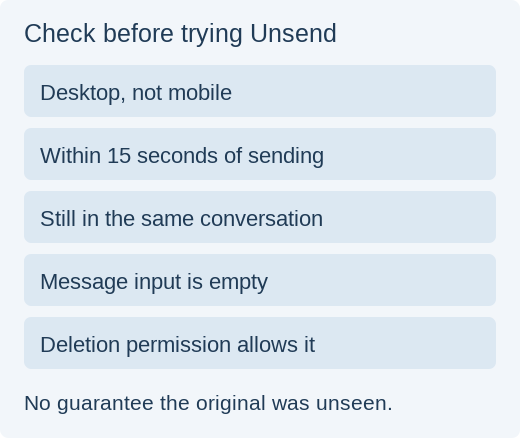
Download this original labelled diagram
Unsend is currently documented for desktop only. You must be within 15 seconds of sending, must not navigate away from the conversation, and the message input must be empty. Owners can restrict Unsend by limiting who may delete messages.
When those conditions apply, press Cmd+Z on Mac or Ctrl+Z on Windows and select Unsend to confirm. The content returns to the message input. You can correct it and press Enter to resend. Returning content to the composer is not the same as automatically sending the corrected version.
On mobile, use permitted Edit or Delete instead. Do not tell someone to hunt for a mobile Unsend button, or promise that returning to a conversation after navigating away restores this operation. Those claims are not established by the current help.
Documented controls: [1].
Understand permanent deletion and role restrictions
Desktop deletion: hover your message, open the three-dot menu, choose Delete message and confirm Delete. Mobile deletion: press and hold your message, choose Delete Message and confirm again. Deletion is permanent. Make sure you have selected the intended message before confirming.
Members can delete their own messages by default, but owners can restrict the permission. Owners and admins may also delete members’ messages in public channels, private channels and group DMs they are part of. That role capability does not give every ordinary member permission to remove someone else’s post.
Slack’s sent-message documentation says bulk message deletion is not available. Removing a channel or changing a retention policy is a separate administrative action; this guide does not use either as a substitute for correcting one post.
Documented controls: [1].
Separate sent-message correction from draft management
An unsent draft is a different object. Slack saves text you write without sending as a draft, and Drafts & sent separates Drafts, Scheduled and Sent. A sent item takes you back to its conversation; use that message’s correction controls there.
The mobile help describes selecting and deleting drafts in bulk. Do not turn that into a claim that you can bulk-delete sent messages. Scheduled-item cancel or edit actions also do not retroactively undo a message already sent.
An original hypothetical correction: you sent “Review version A” but intended version B. Correct the message using the available control. If colleagues may act on the old version, add a clear follow-up such as “Correction: please review version B; version A was named in error.” This wording is an example, not an observed team case or a guarantee that the mistake caused no harm.
Download six complete constructed correction-condition records
Practise three correction decisions
The following invented situations assume only the conditions explicitly stated.
Case 1
On desktop, 8 seconds after sending, you stayed in the conversation and the input is empty. Deletion is permitted. Which operation can return the message to the composer?
Show answer and explanation for case 1
Unsend: use Cmd+Z or Ctrl+Z and confirm.
All documented conditions are specified. After correction, you still need to send the returned content; this does not prove the original was never seen.
Case 2
You sent a message on mobile 8 seconds ago. Is the desktop 15-second Unsend workflow available there?
Show answer and explanation for case 2
No; use permitted mobile Edit or Delete.
Time alone is insufficient. Current documentation limits Unsend to desktop.
Case 3
A mobile instruction lets you select several drafts for deletion. Can that delete several already-sent channel messages?
Show answer and explanation for case 3
No. Bulk draft deletion does not establish bulk sent-message deletion.
The two objects have different management rules. The sent-message help explicitly excludes bulk message deletion.
Sources and further reading
- Slack Help: Edit or delete messagesOfficial control descriptions for edit or delete messages. Consult current help and your actual workspace settings if controls differ.
- Slack Help: Send and read messagesOfficial control descriptions for send and read messages. Consult current help and your actual workspace settings if controls differ.