Practical guide
Slack Scheduled Message vs Reminder: Choose Audience and Timing
Choose the audience first: a scheduled message sends your draft later, a personal reminder prompts you, and a channel reminder posts its description to the channel.
On this page
Choose the audience before the time
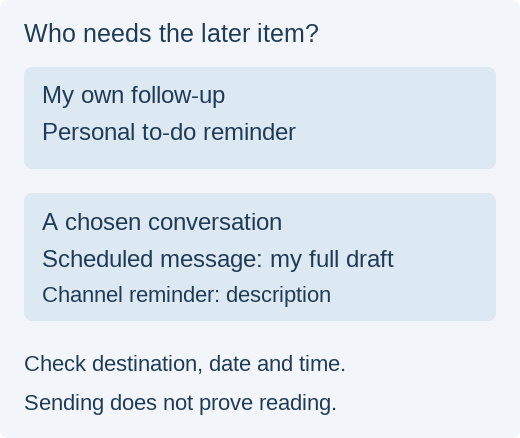
“Remind me tomorrow” and “tell the team tomorrow” require different controls. A scheduled message sends the content you have drafted to a chosen channel, DM or thread later. A personal reminder attaches a due date to your to-do and notifies you. A channel reminder sends a message with its reminder description to the named channel. Reminders are therefore not all private.
On a narrow screen, scroll inside this table. Keyboard users can focus the region and use the arrow keys.
| Need | Control | What appears later |
|---|---|---|
| Publish my prepared instructions | Scheduled message | Your drafted message in the chosen conversation |
| Remember my own review | Personal to-do reminder | Your reminder notification and To-dos/Activity badge |
| Repeat a simple team prompt | Channel reminder | A reminder-description message in the channel |
Schedule the actual message
- Open the intended channel, DM or thread and write the message. Confirm the destination before choosing a time.
- On desktop, choose the arrow beside the paper-plane icon. On mobile, press and hold the paper-plane icon. Pressing Enter on desktop or tapping the plane on mobile sends immediately.
- Choose the later time using the scheduling control, then check the scheduled item rather than assuming an unsent draft is scheduled.
Desktop Drafts & sent separates Drafts, Scheduled and Sent. Hover a draft or scheduled message to see its available management actions. On mobile, open Home → Drafts & Sent → Scheduled, then press and hold the item to edit, reschedule, send, cancel or delete it. A draft saves automatically when you write without sending; that alone does not arrange delivery.
Documented controls: [1].
Create a reminder for your own follow-up
For a new personal task on desktop, open To-dos → Add To-do, enter the details, choose Add reminder, select a time or Custom, and click Add. On mobile, open Home → To-dos, use the plus sign, enter the task and select Done, choose its date and time, then confirm with the checkmark.
For an existing message or file, desktop users hover it, open the three-dot menu and choose Remind me about this. Mobile users press and hold it and choose Remind me. This is useful for your own later reading without scheduling a new message to other people.
Change the due date from To-dos: on desktop, hover the item and use Edit reminder; Clear due date removes the reminder. On mobile, choose the item and the reschedule icon; Clear reminder removes it. The current help calls this area To-dos; do not rely on an older tutorial naming Later.
Documented controls: [2].
Create a channel reminder deliberately
The documented command format is /remind [#channel] [what] [when]. An original example is /remind #layout-review to check version B every Monday. This is a constructed example, not a command executed in a workspace. Replace the channel and task, and check whether posting that reminder is appropriate for its readers.
On desktop, type /remind in the message field and select it from the shortcuts menu, then enter and send the details. On mobile, enter the same documented format in a channel or DM message field and send it. Guests cannot create channel reminders. A role restriction is not fixed by trying a different spelling.
Channel reminders cannot be edited. In the channel where the reminder is sent, use /remind list, find the reminder in the response and choose Delete; recreate it with the corrected details. The list response is visible only to you. That does not make the reminder-description message private when its scheduled time arrives.
Documented controls: [2].
Check recurrence, time and what delivery does not prove
Channel reminders can repeat by day, such as every Monday; the documented control does not support time increments such as every hour. Do not reinterpret the simple command as a general automation system. A different recurring workflow needs its own current instructions and permissions.
For reminders set for a day without a specific time, Slack documents a default of 9 a.m. in your time zone. Desktop Preferences lets you change the default reminder-notification time. Slack recommends American English date and time format for channel reminders. Inspect the actual scheduled date and time when ambiguity matters.
A delivered message or reminder is not evidence that a reader accepted a task. Include the requested action and due time in the content, and ask for an explicit response when you need confirmation. This is communication advice, not a claim about Slack receipt tracking.
Download five complete constructed audience and timing decisions
Practise three timing choices
These are original hypothetical situations. No account action or delivery test was performed.
Case 1
You want a private prompt to review a colleague’s existing message tomorrow. Which control fits?
Show answer and explanation for case 1
Use a personal message reminder.
Remind me about this creates your follow-up. A scheduled channel message would create a different audience and event.
Case 2
A channel reminder has the wrong time. Can you simply edit it like a scheduled message?
Show answer and explanation for case 2
Delete and recreate the channel reminder.
The reminder documentation excludes channel-reminder editing. The private /remind list response lets you find a reminder you can delete.
Case 3
You need a reminder every hour. Does the documented every-Monday command pattern support that?
Show answer and explanation for case 3
No; hourly time increments are outside this channel-reminder feature.
Daily recurrence and hourly recurrence are different. Obtain a separate supported automation procedure rather than inventing a command.
Sources and further reading
- Slack Help: Send and read messagesOfficial control descriptions for send and read messages. Consult current help and your actual workspace settings if controls differ.
- Slack Help: Set a reminderOfficial control descriptions for set a reminder. Consult current help and your actual workspace settings if controls differ.